In this post, we will learn how to download and install Visual Studio Code on Windows. But before we begin the explanation, we would like to welcome our dear visitors. Thank you.
Definition of Visual Studio Code:
Visual Studio Code, or VS Code for short, is a scripting program developed by Microsoft for Windows, Linux, and macOS operating systems.
Features of VS Code software:
- It supports many programming and design languages.
- It helps programmers correct errors while writing.
- It provides helpful add-ons for your work.
- It distinguishes code symbols with a different color than text.
- It allows you to customize keyboard shortcuts to your liking.
- You can change the background and text colors to your preference.
How to search for Visual Studio Code on search engines:
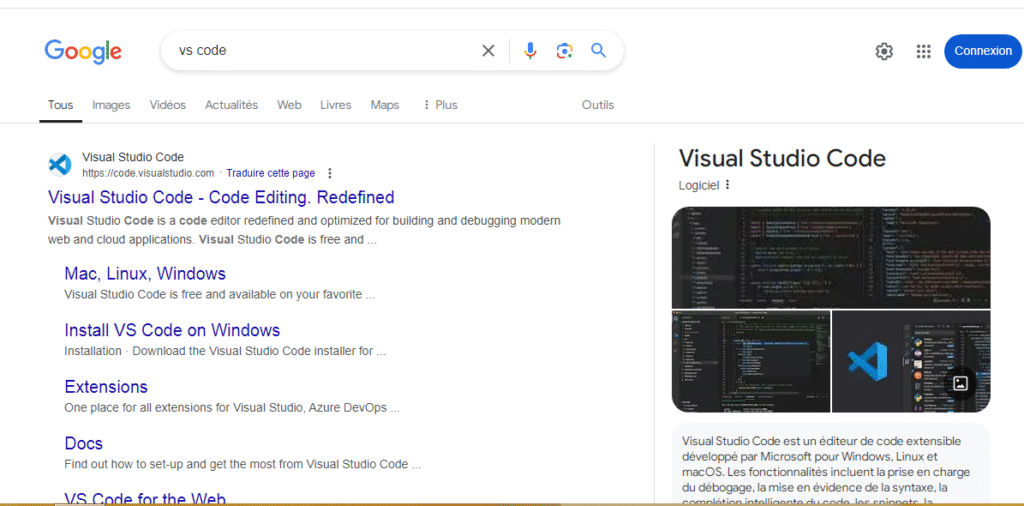
Go to a browser such as Google Chrome or any other browser, then type Visual Studio Code or vs code in the search box, then go to the official website, as shown in the image below.
alert:
You can go directly to the official website from here.
How to download Visual Studio Code on Windows:
First step:
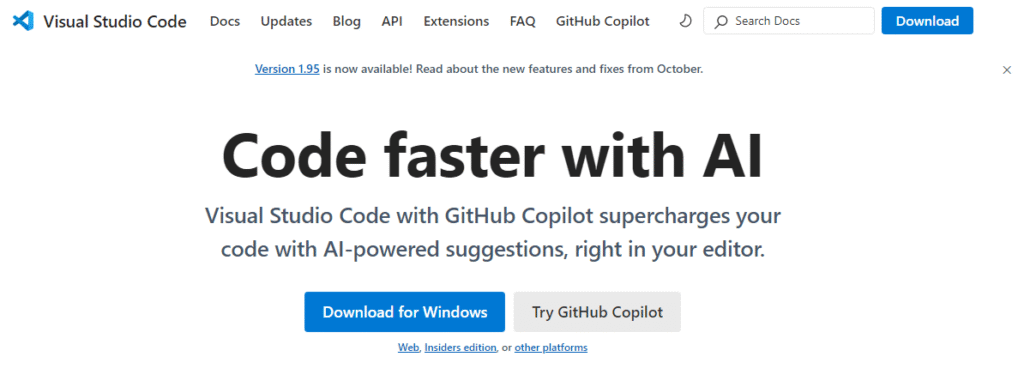
After accessing the official website, click on the blue “Download for Windows” button, as shown in the image below. Wait a short while for the download process to begin.
Step two:
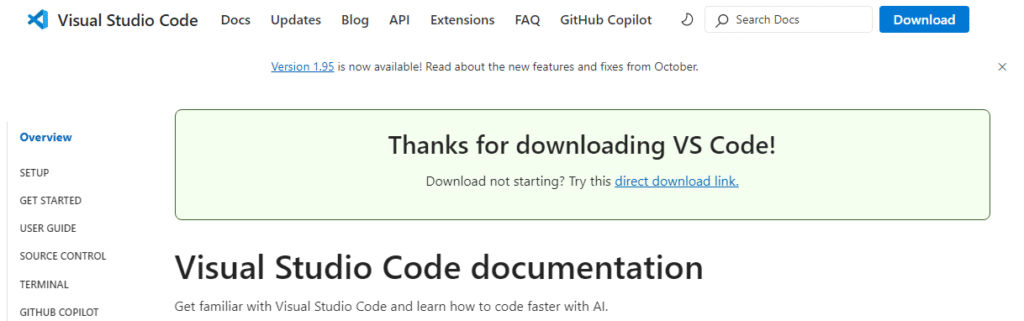
If the download process does not start, click on (Download not starting? Try this (direct download link)), which is in green, as shown in the image below.
Note:
This is how to download and install Visual Studio Code on modern Windows operating systems like Windows 10 and Windows 11. To download an older version for Windows 7 or Windows 8.1, click here.
How to install Visual Studio Code on Windows:
First step:
Go to the program’s download location and double-click on it to start it. A window will pop up asking you to run as administrator; select (yes).
Step two:
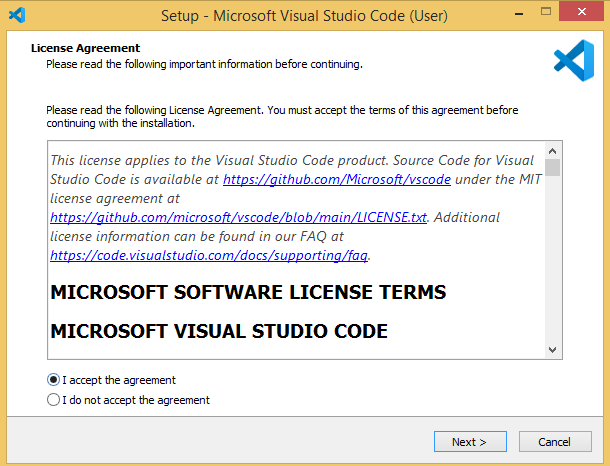
I agree to the terms and conditions by selecting the first option, (I accept the agreement), as shown in the image below.
Step three:
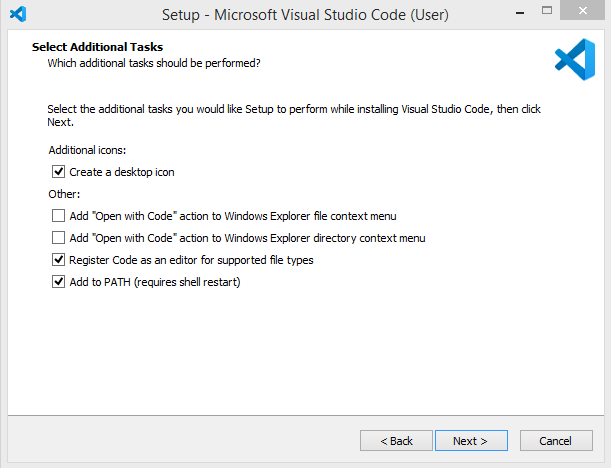
After agreeing to the terms and conditions, proceed with the installation process by clicking next, then next, then next, until we reach, as shown in the image below.
Step four:
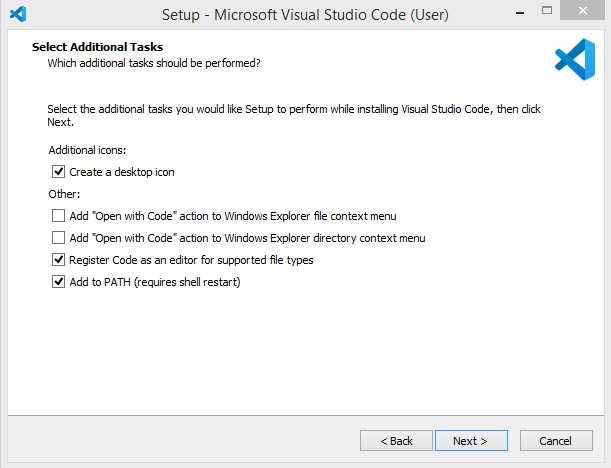
If you want to display the program icon on the desktop, leave the first option on a checkmark, as shown in the image below, and leave the other options as they are.
Step five:
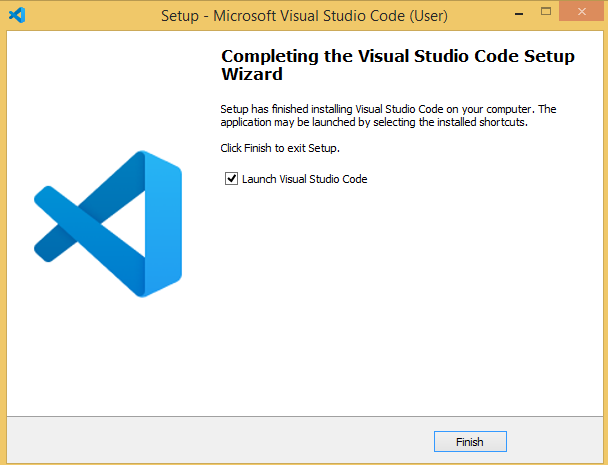
Click next, then install, and wait a few moments for the program to install. After the installation is complete, you can preview Visual Studio Code by leaving the option checked, as shown in the image below.