In this post, we will learn how to Create an HTML file or open an HTML file in Visual Studio Code, but before we begin the explanation, we would like to welcome our dear visitors to our site. Welcome.
How To Creating a folder in Visual Studio Code:
First step:
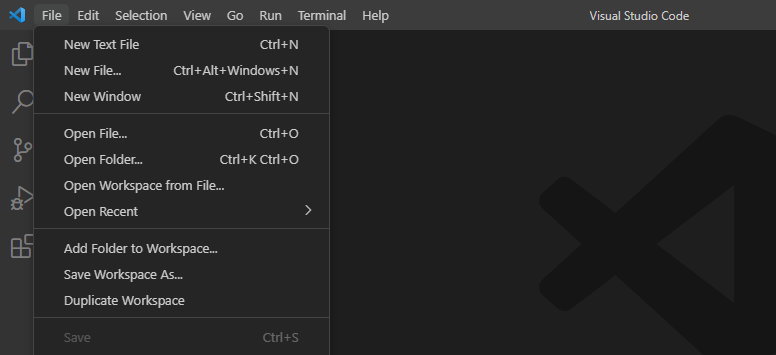
Open the Visual Studio Code editor, then go to File and then Open Folder, as shown in the image below.
Step two:
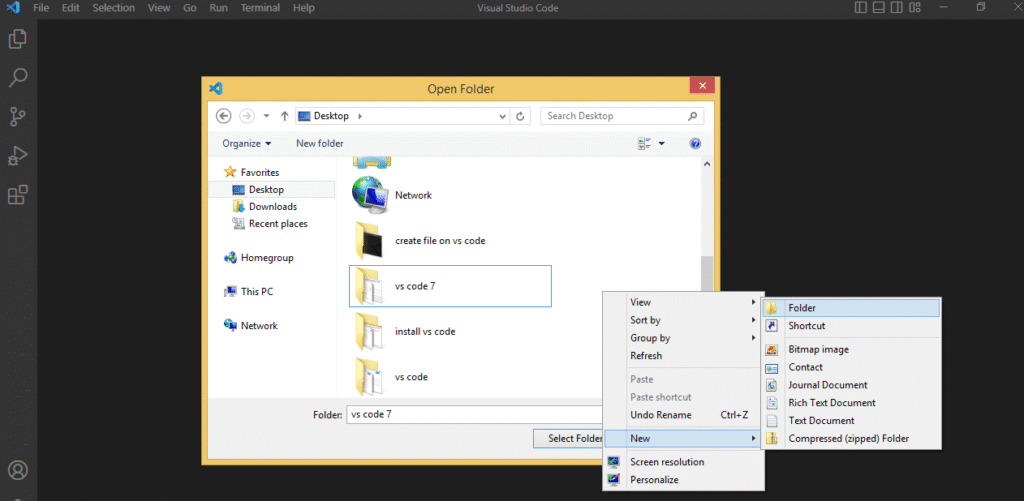
You create a new folder by going to New and then Folder, as shown in the image below.
Step three:
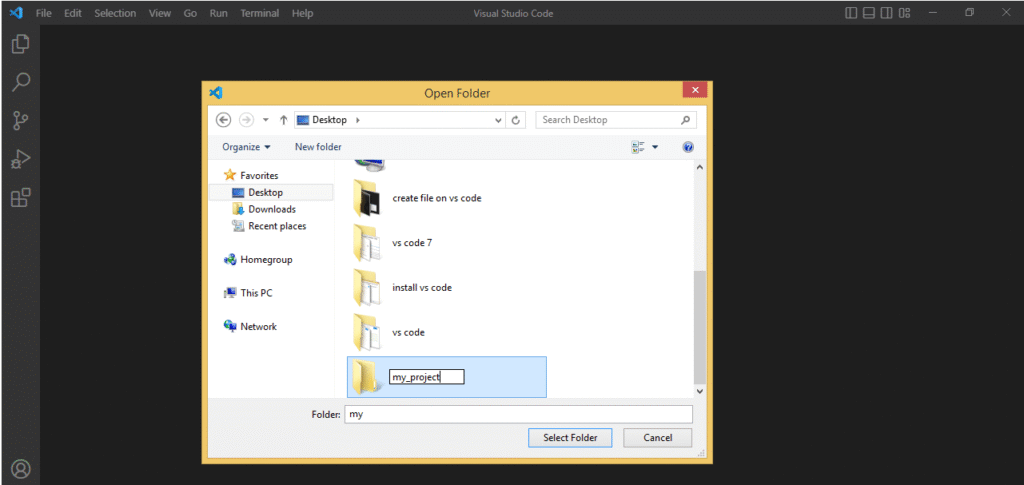
Name your project folder whatever name suits you, as shown in the image below.
Step four:
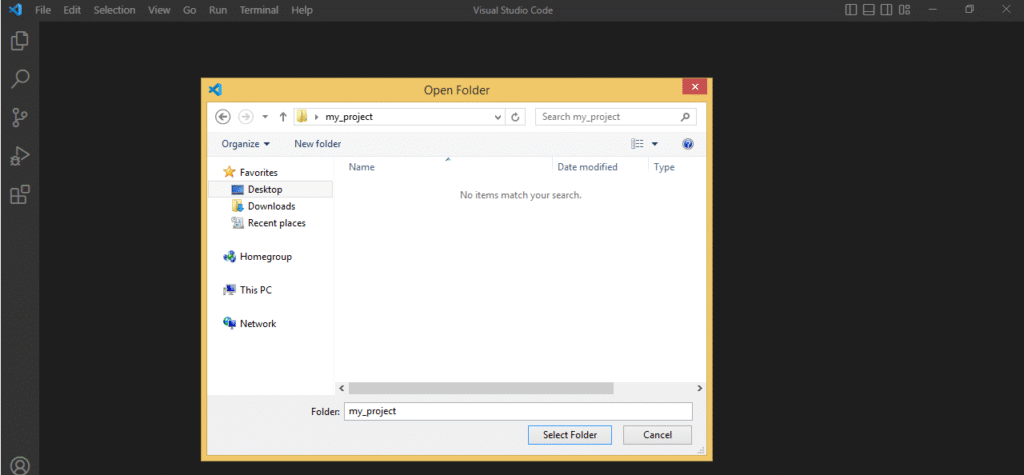
Open the folder you created, then click on select folder, as shown in the image below.
How to create an HTML file in Visual Studio Code:
Note:
After accessing the new project folder, here are two ways to create the file.
The first method for creating a file in Visual Studio Code:
First step:
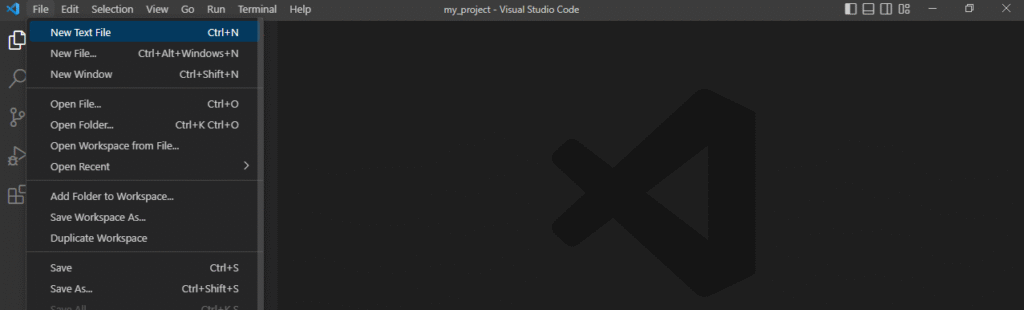
Go to File, then New Text File, as shown in the image below.
Step two:
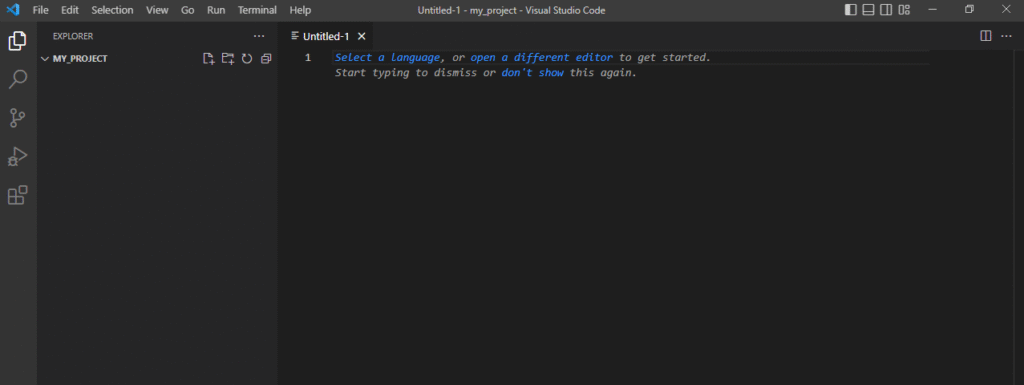
After creating the file, you will notice that it does not have any extension, as explained in the course below.
Step three:
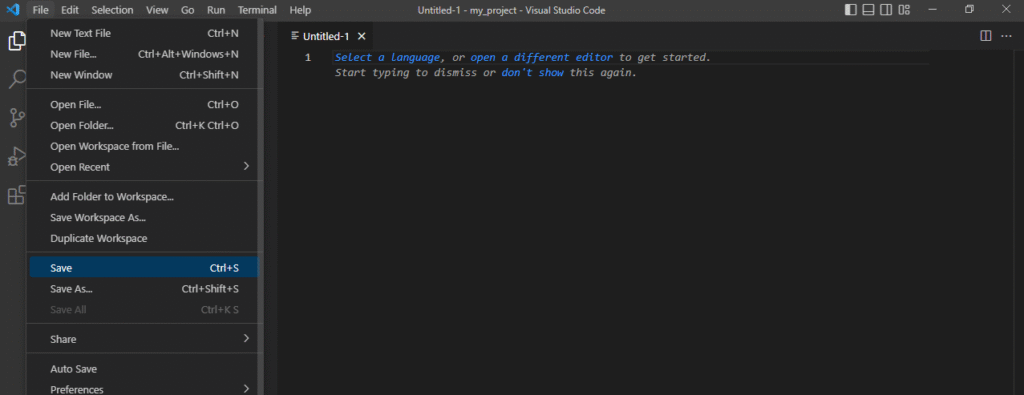
To name the file, go to File and then Save, as shown in the image below.
Step four:
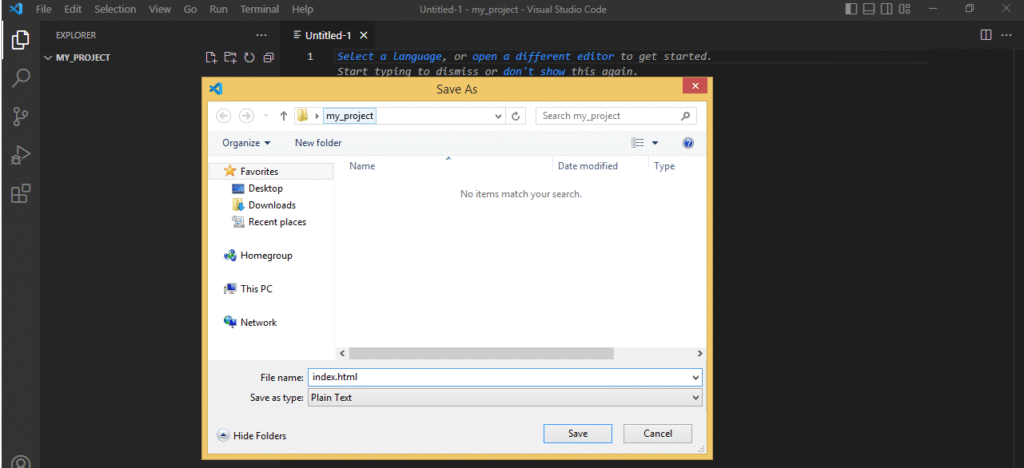
After clicking on save, a file naming window will pop up. Give the file a name, for example, index, then add . and the language extension you will be working with, i.e., html, then click on save, as shown in the image below.
Step five:
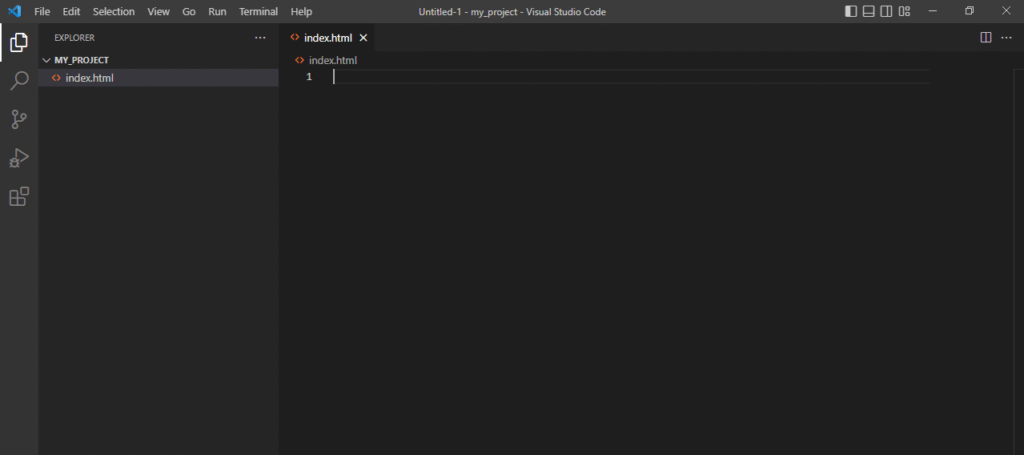
Once a file name and extension are given, the file will be recognized, as shown in the image below.
The second method for creating a file in Visual Studio Code:
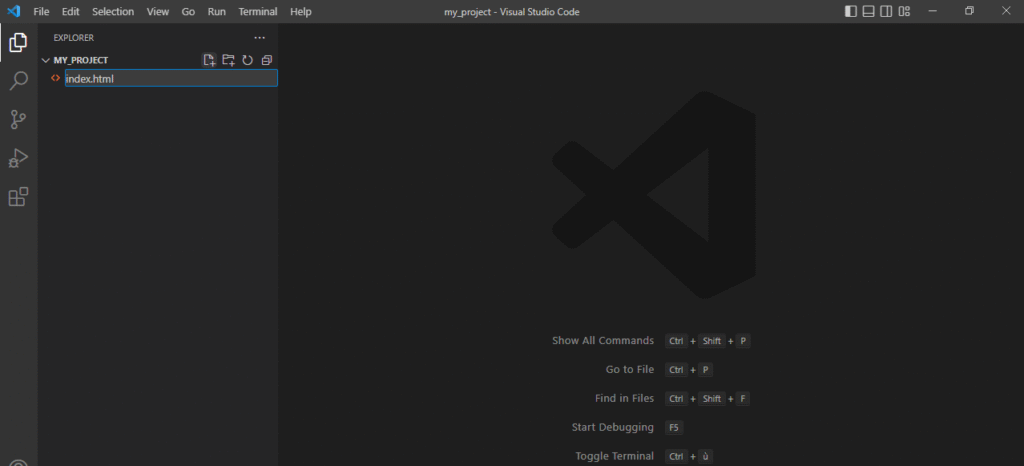
If you look at the sidebar in the Visual Studio Code editor, you will notice the option to create a folder or file. You create a file and give it a name, followed by the extension of the language you are working with, as shown in the image below.
How to open an HTML file in a browser:
First step:
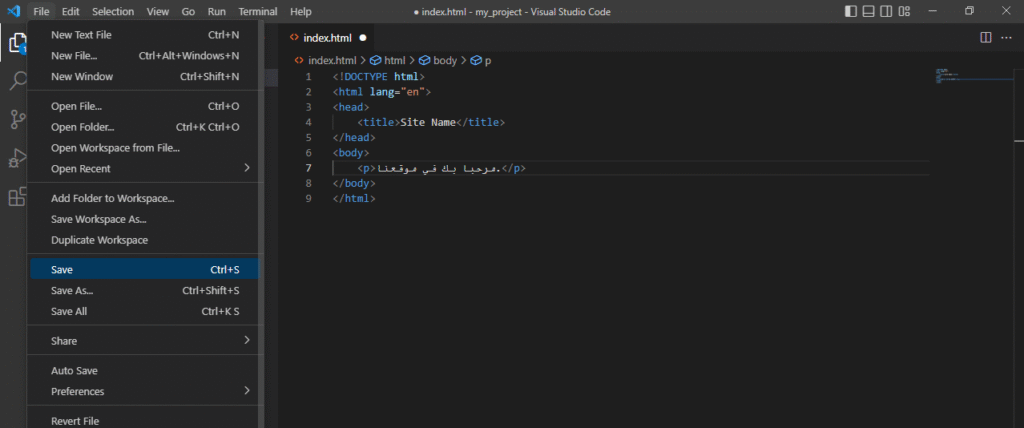
After writing to the file, go to File, then Save, or Save All if you have written to or edited several files, as shown in the image below.
Step two:
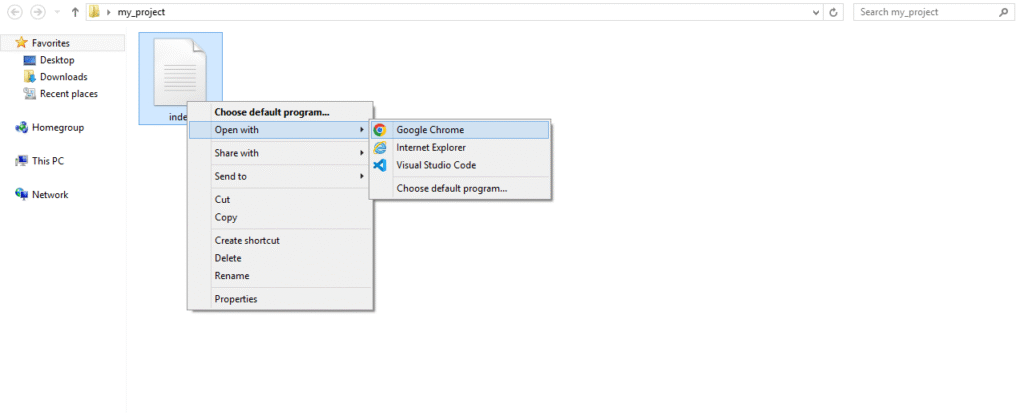
Go to your project folder, then select the file you want to view in the browser. Right-click on it and choose “open with” and then the browser we will use, as shown in the images below.