In this post we will learn how to create a Virtual Machine on VirtualBox, but before we begin we would like to welcome our dear visitors, welcome.
How to create a Virtual Machine on VirtualBox:
First step:
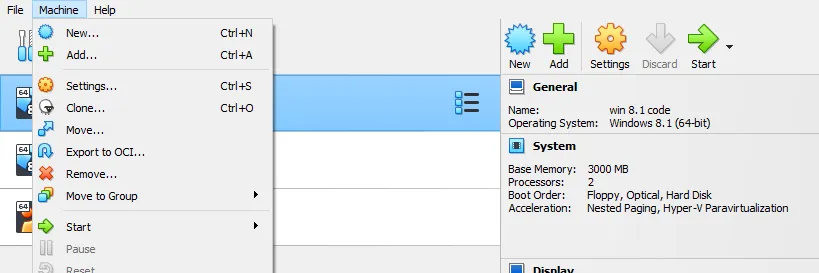
Open the VirtualBox program, then go to Machine, then New, or click directly on the blue New button, as shown in the image below.
Step two:
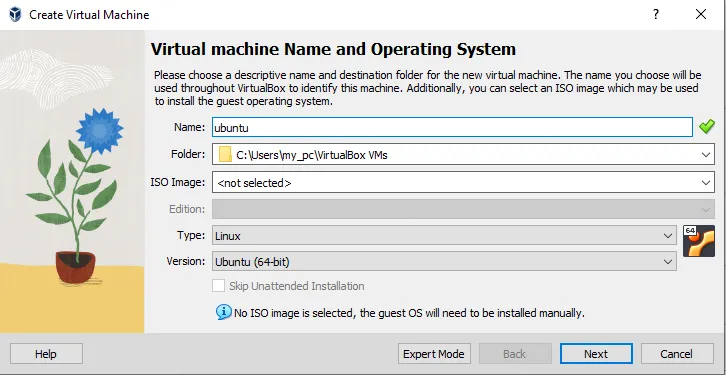
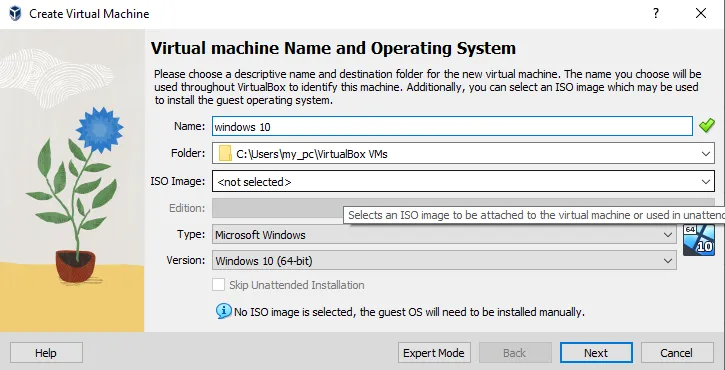
Write the name of the Virtual Machine. Write any name you like, but I advise you to write the system name, for example (ubuntu) or (windows). As soon as you write the system name, the other settings below will change. To understand more, look at the two pictures below.
Step three:
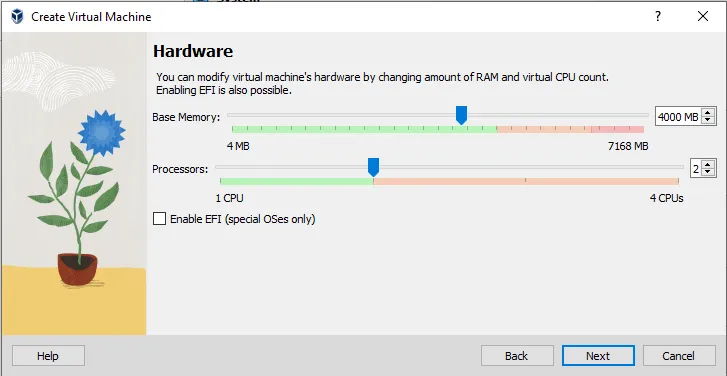
Click on Next, then specify the size of the RAM and processor. Do not exceed the green line as shown in the image below.
Step four:
After setting the memory and processor settings, click on next, then specify the disk size as shown in the image below.
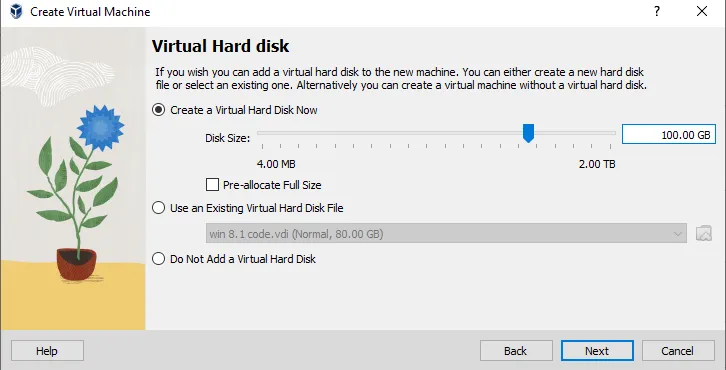
Warning: You can specify a disk size larger than the space you have on the disk, but once the disk reaches the maximum, the program will stop.
Step five:
Click on Next. After clicking on Next, you will see the options you previously selected, as shown in the image below. If you wish to go back, click on (back), and if you wish to continue, click on (finish).
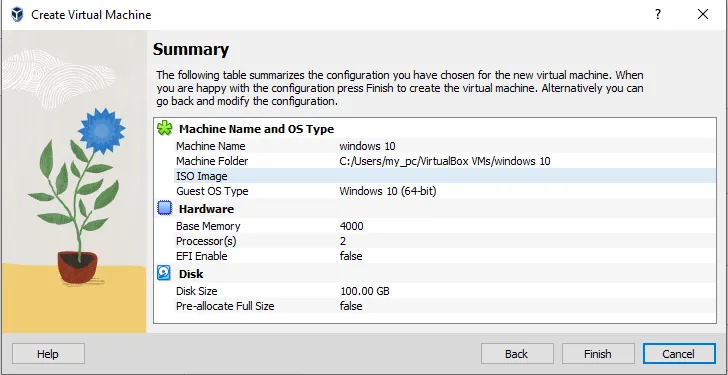
How to configure Virtual Machine settings on VirtualBox:
First step:
You select the default machine whose settings you want to adjust by clicking on it with the left mouse button or placing the mouse on it.
Step two:
Then right-click on the mouse, a window will pop up, select Settings as shown in the image below.
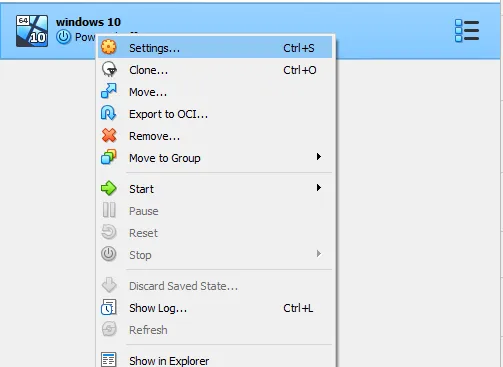
- General: This section allows you to modify the virtual machine’s name and save location.
- System: This section allows you to modify the processor and RAM, and also add peripherals.
- Display: This section allows you to modify the graphics card.
- Storage: This section allows you to add the system drive.
- Audio: This section is for audio.
- Network: This section is for networking.
- USB: This section is for USB.
- Shared Folders: This section allows you to link the virtual machine’s operating system to the host system by creating a file and adding it to this section.
Note: The section you need to look at when accessing these settings is the (Display) section. Raise the graphics card to the maximum allowed limit as shown in the image below.
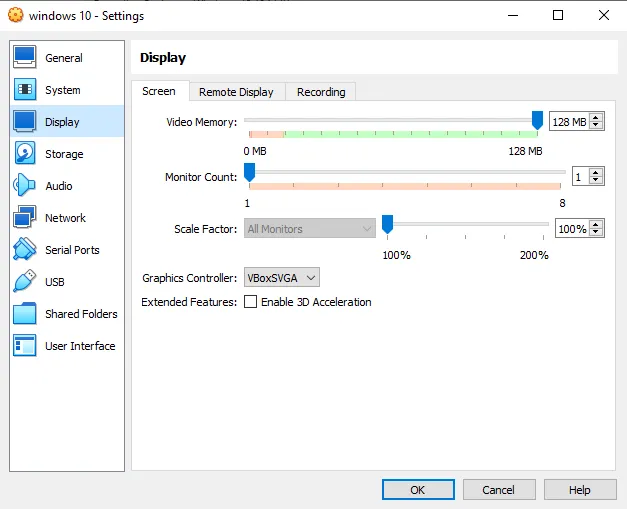
How to insert a disk into a Virtual Machine in VirtualBox:
There are two steps to inserting the disk onto a Virtual Machine in VirtualBox:
The First method:
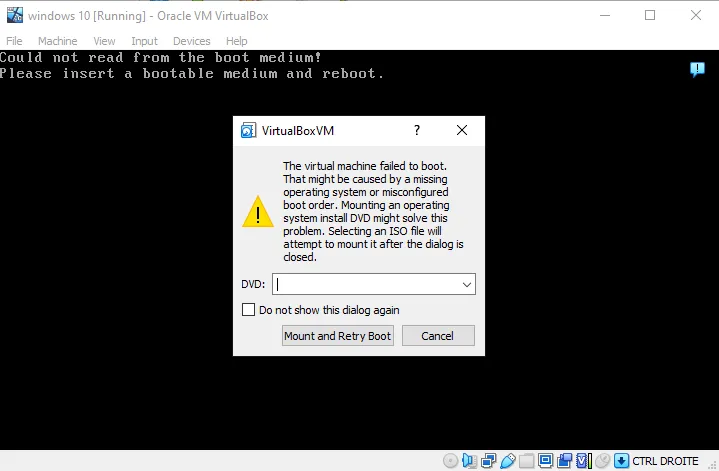
Run Virtual Machine. Once Virtual Machine is running, you will be asked to insert the disk as shown in the image below.
The second method:
First step:
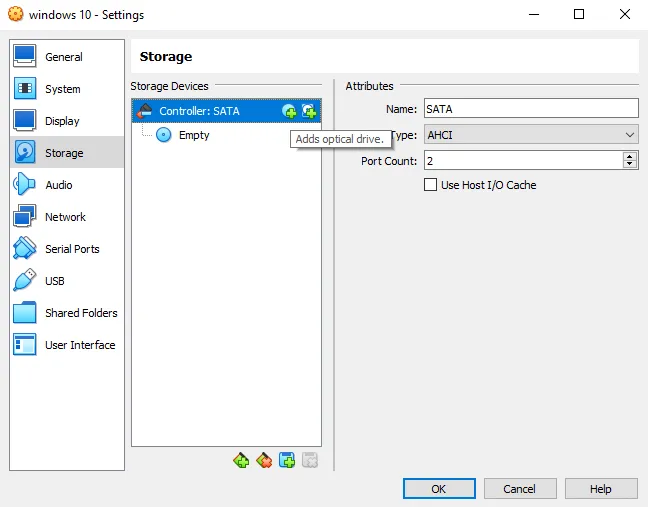
Go to the (Storage) section and then the plus sign inside the disk that is at the top, as shown in the picture below.
Step three:
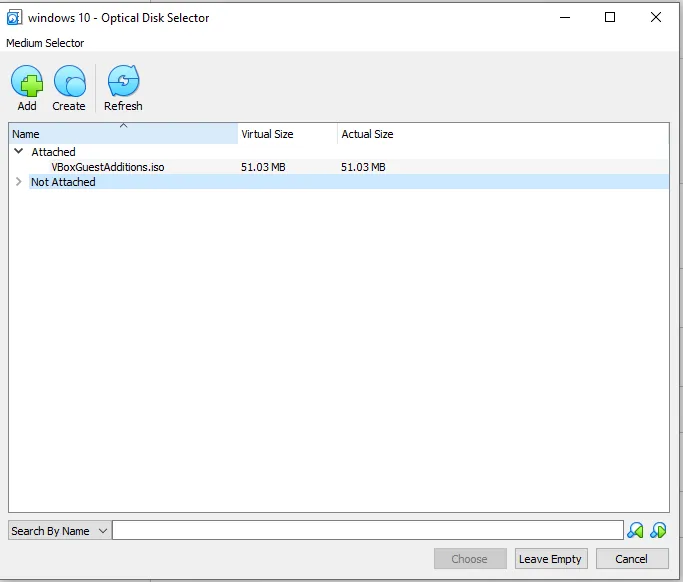
After clicking, another window will pop up. Click on “add” as shown in the image below. Then bring up the disk and click on “choose”. Then click on “ok” in the previous section, i.e., “Storage”, and run the virtual machine.
Here we have reached the end of this post, in which we learned how to create a Virtual Machine on VirtualBox.