In this post, we’ll learn how to download and install VirtualBox for Windows step by step, but before we begin, we’d like to welcome our valued website visitors.
Definition of the VirtualBox program:
Virtualbox is a virtual machine emulator that allows you to run various operating systems within the main system. It was created by a German company and is currently managed by Oracle.
How to find VirtualBox software:
Go to one of the browsers, type Virtualbox and then select the official website, as shown in the image below. You can also go to the official website directly from here.

How to download VirtualBox on Windows:
First step:
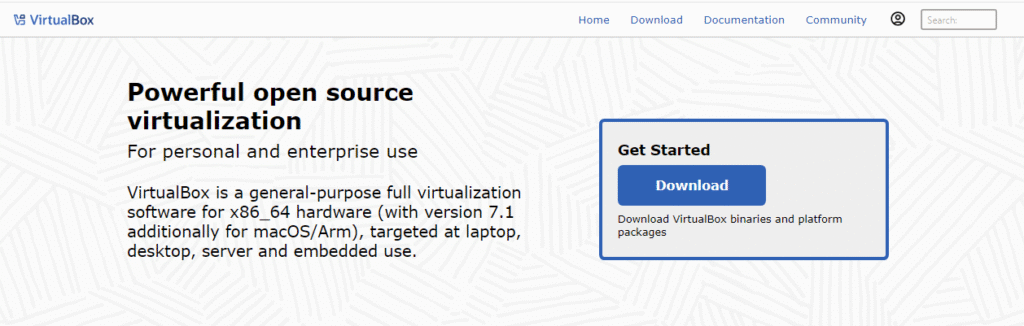
After entering the official website, click on the blue “Download” button, under “Get Started” as shown in the image below.
Step two:
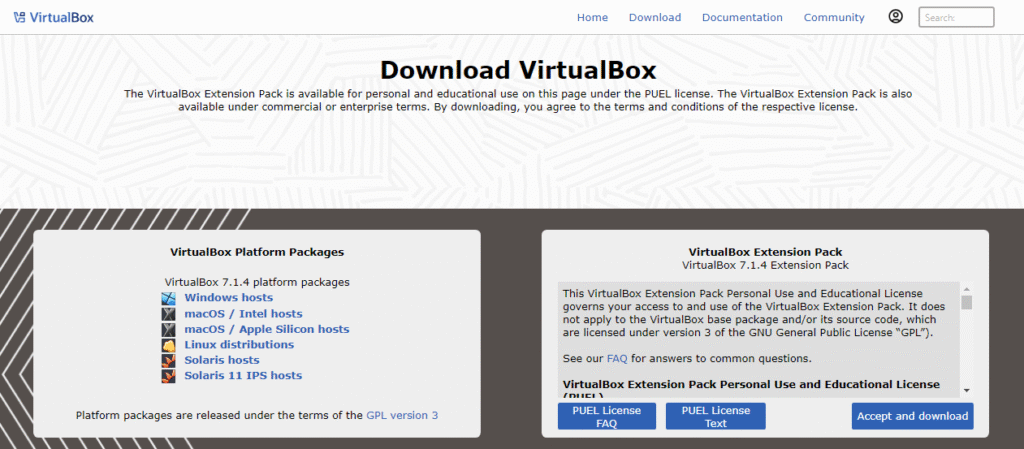
After clicking on Download, you will notice several versions of the Virtualbox program at the bottom. Among these versions is one labeled Windows hosts, as shown in the image below.
Step three:
Click on Windows hosts. Once you click on Windows hosts, the program download process will begin.
How to install VirtualBox on Windows:
First step:
Go to the Virtualbox download location, then click on the program icon twice, as shown in the image below.

Step two:
After that, a window will pop up for you to run as administrator. Click on yes, then wait a little while until the download process begins.
Note:
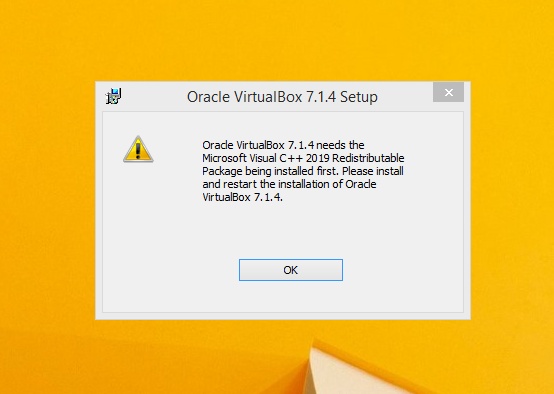
If the installation process stops and this window appears as shown in the image below, you need to install the Microsoft Visual C++ 2019 program. To learn how to install the program, click here.
Step three:
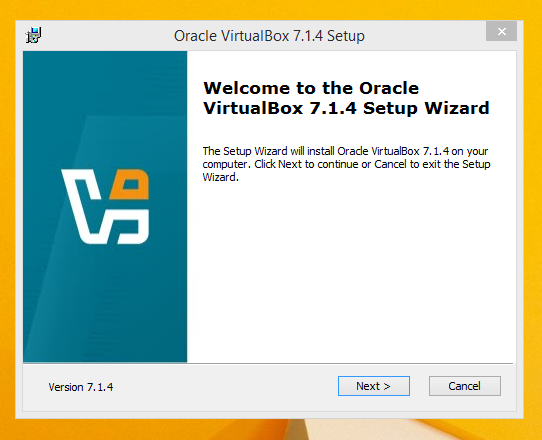
Now click on Next as shown in the image below.
Step four:
I agree to the terms and conditions, as shown in the image below.

Step five:
Click on Next, then leave the installation location as shown in the image below, and click on Next.

Step six:
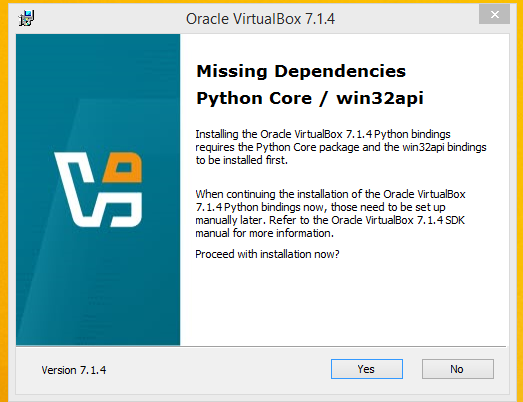
Then click yes and then yes again, as shown in the two pictures below.

Step seven:
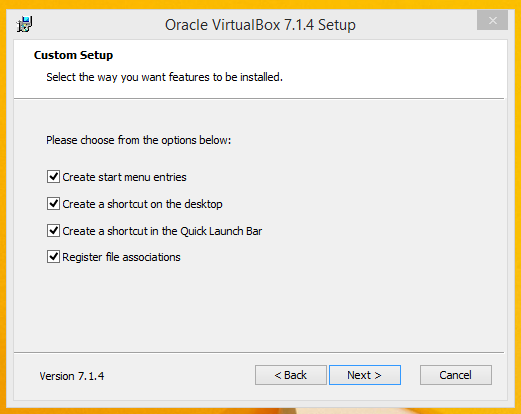
Leave the options as shown in the image below.
Step eight:
Then click Next, then Install. As you can see in the image below, the VirtualBox installation process has been completed successfully.

Note:
If this window, as shown in the image below, pops up during the installation process, click on Install.

Here we have reached the end of this post, in which we learned how to download and install VirtualBox on Windows.