In this post, we will learn how to install Ubuntu (as a primary system | as a virtual system) step by step, but before we begin the explanation, we would like to welcome our dear visitors, thank you.
Note: Before going into details, you should know that the installation process for Ubuntu, or any other system, is divided into three steps, whether it’s Windows, Mac, or Linux.
The first step in installing operating systems:
To install operating systems, you need to download one of the versions of the operating system you wish to install.
The second step in installing operating systems:
After obtaining a copy of the operating system you wish to install, you can install the system as a primary system or as a virtual system.
How to install the system as the primary system:
If you wish to install the system as the primary operating system, you will need software to burn a copy of the system onto a USB flash drive or DVD.
After burning the copy, you turn off the computer, enter boot, and select the device on which the system was burned.
How to install the system as a virtual machine:
If you want to install the system as a virtual machine, you will need a program like (VirtualBox) to create a virtual machine on it.
The third and final step in installing operating systems:
After burning the system copy or creating a virtual machine to access the system disk, we wait a little while until we reach the system settings.
How to install Ubuntu:
First step:
Note that there are two options: either install Ubuntu by clicking on (install ubuntu), or try Ubuntu before installation by clicking on (try ubuntu), as shown in the image below. However, before choosing either option, we select the language we wish to use in the system.
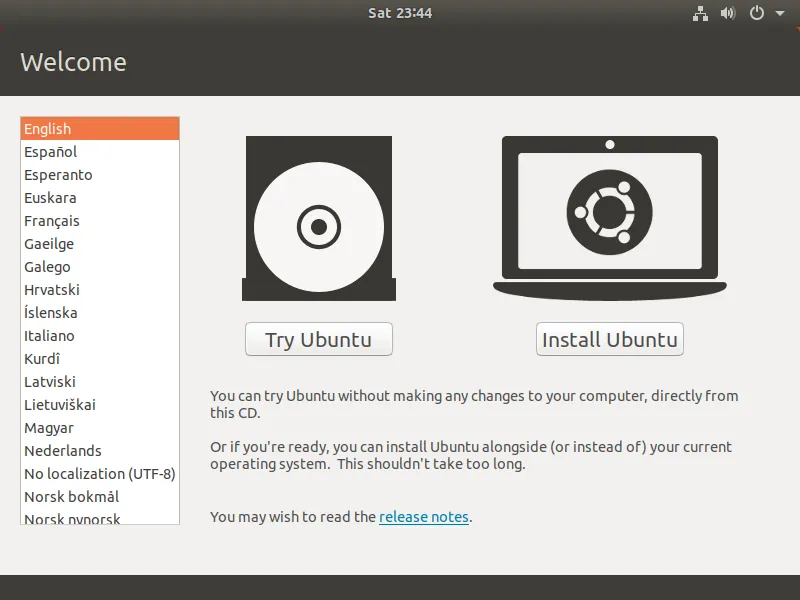
Note: If you try Ubuntu before installation, you will find the installation method available during the trial.
Step two:
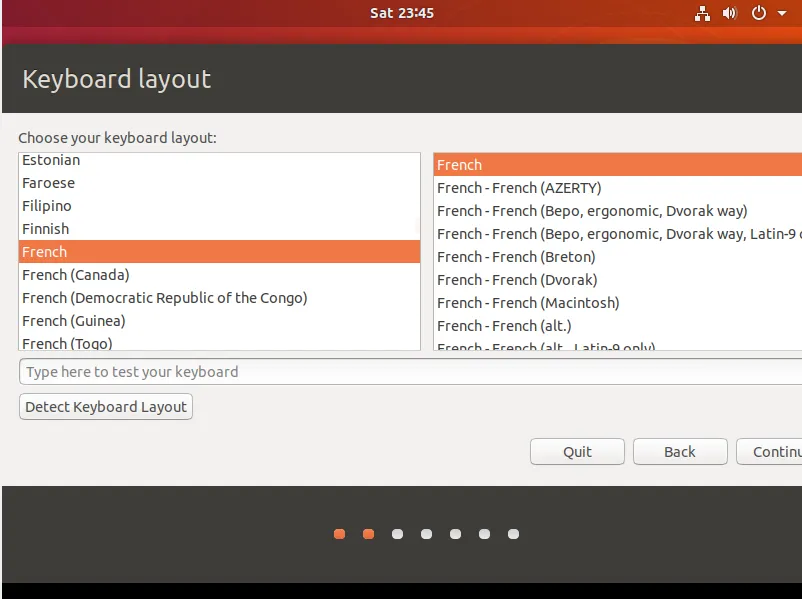
After clicking on (Install Ubuntu), choose your keyboard language as shown in the image below.
Step three:
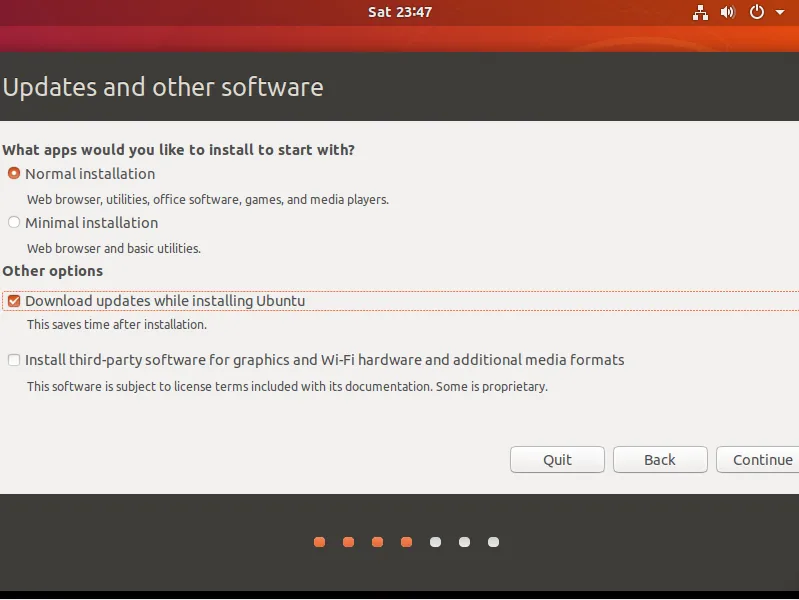
Click on (continue), then choose the installation method. I will choose (Normal Installation). If you have internet access during installation, you can choose the option (Downloads Updates while installing ubuntu), as shown in the image below.
Note: If you check the option (install third party software for graphics and wifi hardware), you are allowing third-party software, but I don’t know if this software is monitored by the Ubuntu team first. You can search for more information on the internet.
Step four:
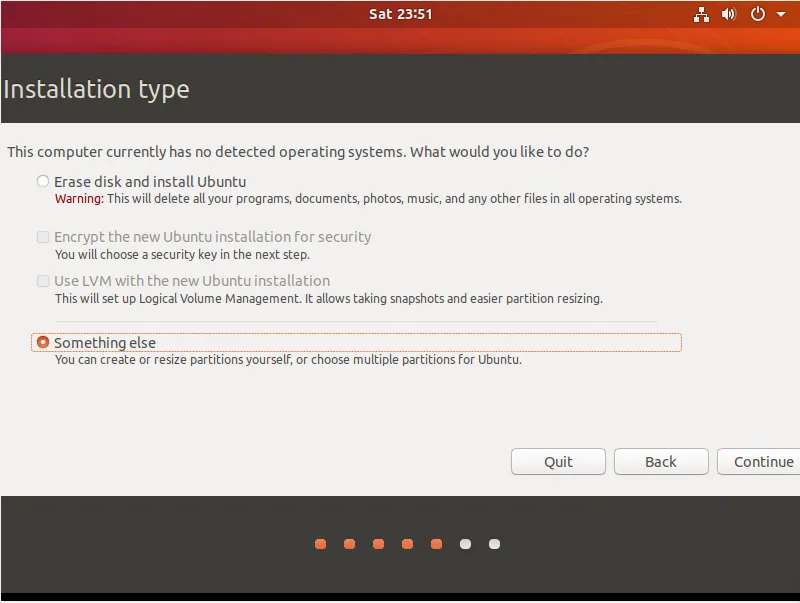
After clicking “Continue,” you will be taken to the hard drive partitioning option. If you are installing the system as a virtual machine, you can choose the “Erase disk and install Ubuntu” option. However, if you want to partition the hard drive or install Ubuntu as the primary operating system, choose the “Something else” option, as shown in the image below.
Warning: If you select the option (Erase disk and install ubuntu), and you want to install the system as the primary system, the entire hard drive will be deleted.
How to partition a hard drive while installing Ubuntu as a virtual machine:
First step:
Notice in the image below the disk that it is an unextracted space. To extract this space, we click on (New partition table).
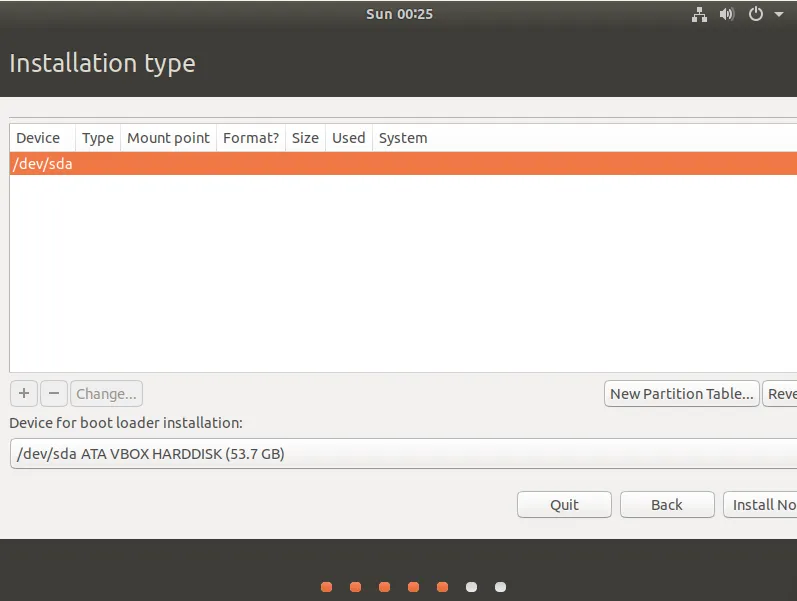
Step two:
Then a window will pop up; click on (continue), as shown in the image below.
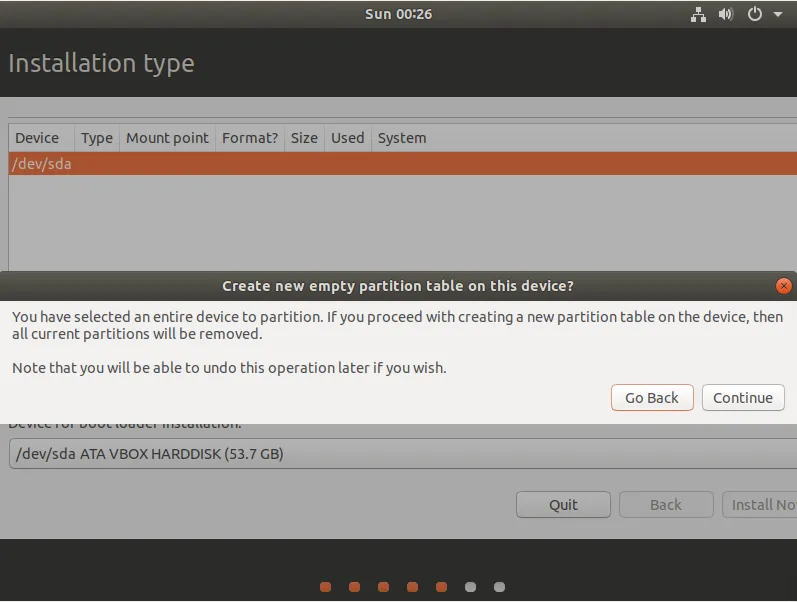
In the image below, we can see that the unextracted area has become free space.
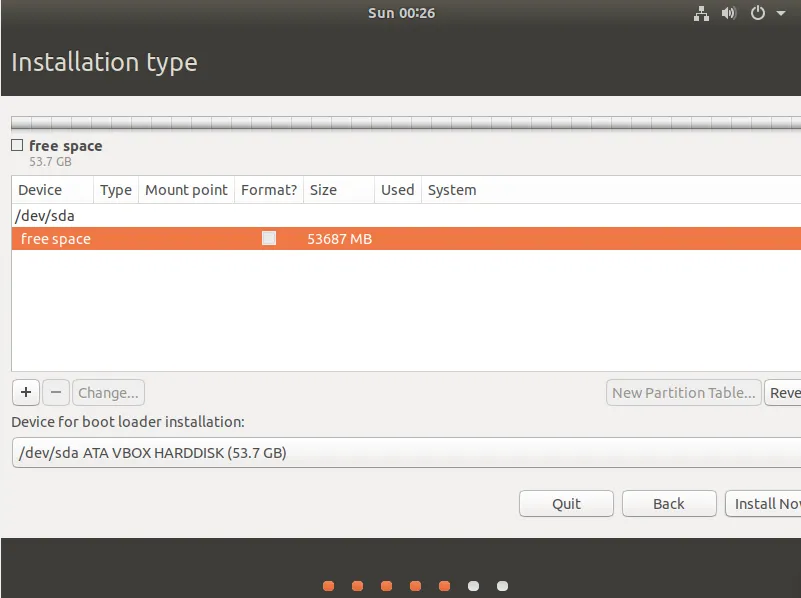
Step three:
To divide this space, click on the + sign. After clicking on the + sign, extract a private section (mount point: /home), and change (primary) to (logical), as shown in the image below.
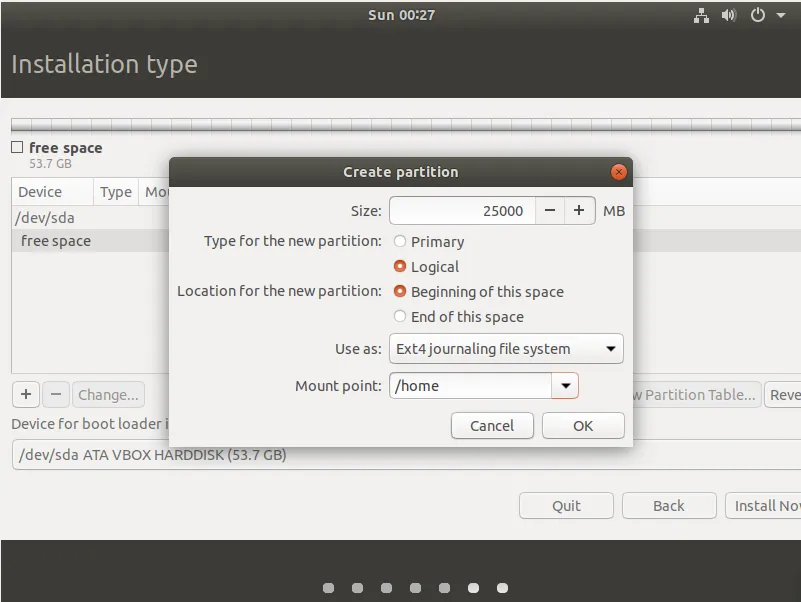
Step four:
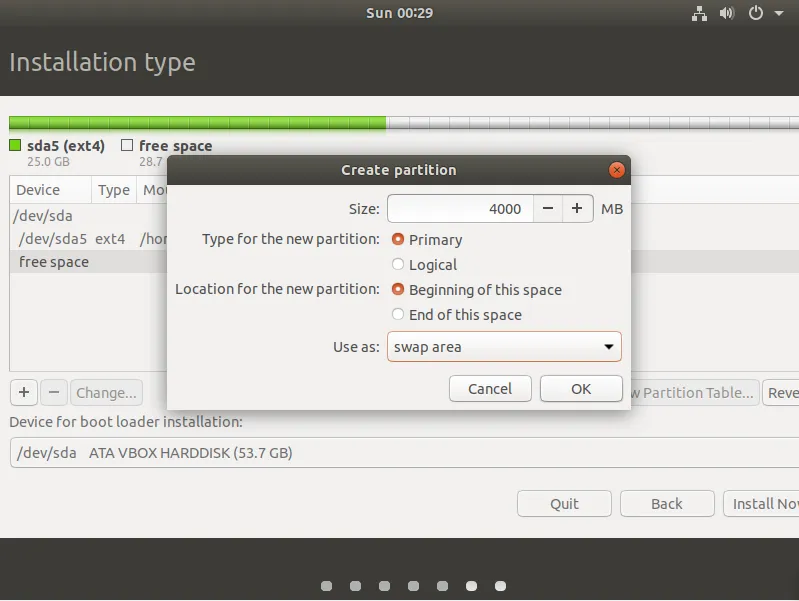
Select the remaining space and click on the + to extract a small portion of about 4 or 5 GB for the (swap) disk, only change (Use as: /swap area) as shown in the image below.
Information: The swap disk in Linux is a hard disk used as virtual memory. In other words, when the RAM is not sufficient to run programs, the system transfers some inactive data from RAM to the swap disk.
Step five:
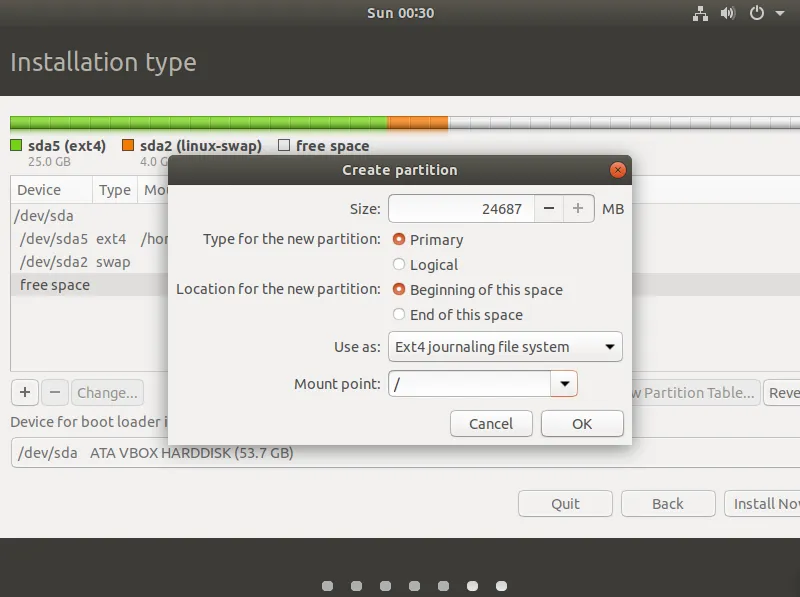
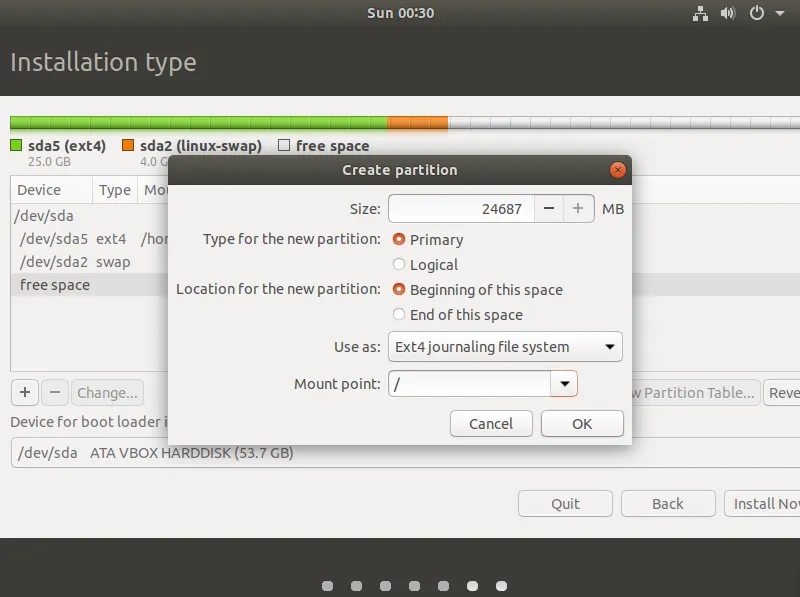
Click again on the remaining space and extract the remaining space (root) i.e. (mount point: /), leaving the option on (primary), as shown in the image below.
How to partition a hard drive while installing Ubuntu as the primary operating system:
First step:
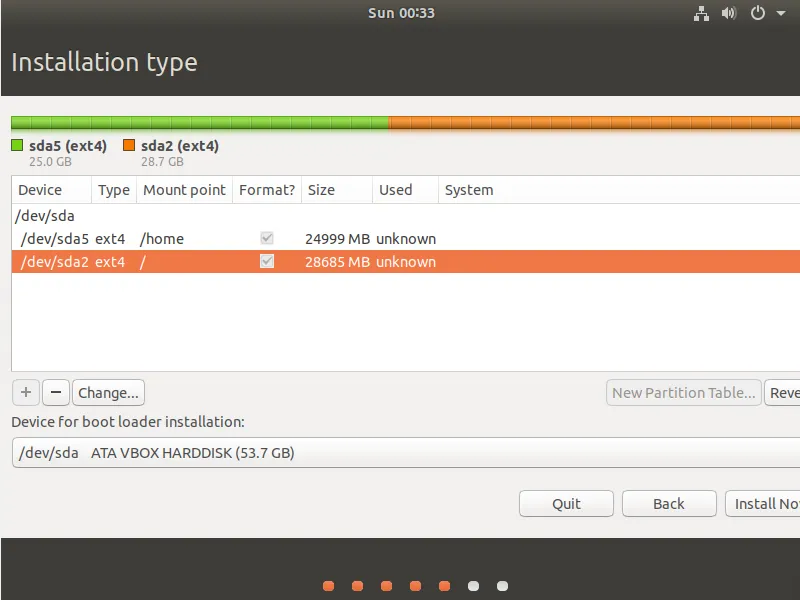
When we get to the method of partitioning the hard drive, we will find the drive in the manner shown in the image below.
Step two:
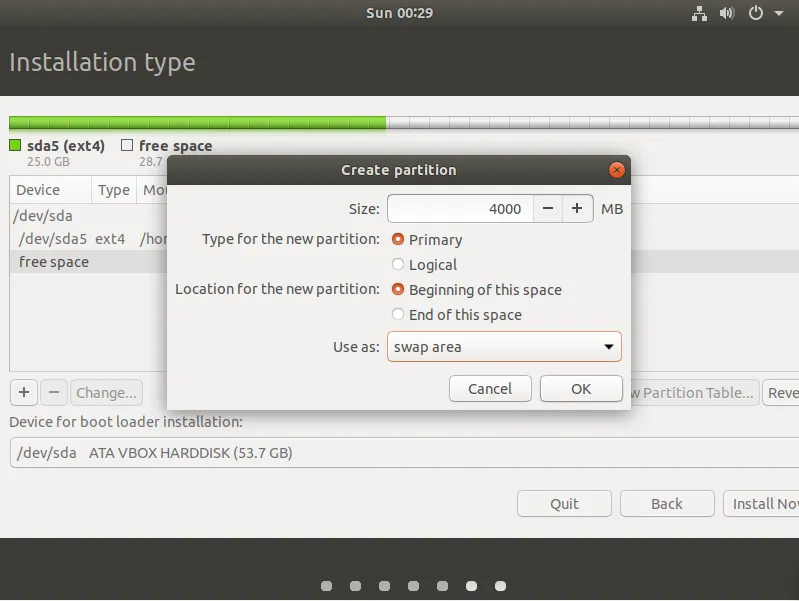
You delete my root partition, which is the (C) drive in Windows. The deletion method is to select the partition and then click on the minus sign, then extract 4 or 5 GB of it as a swap disk and give the rest (root) i.e. (mount point: /), as shown in the two pictures below.
Step five:
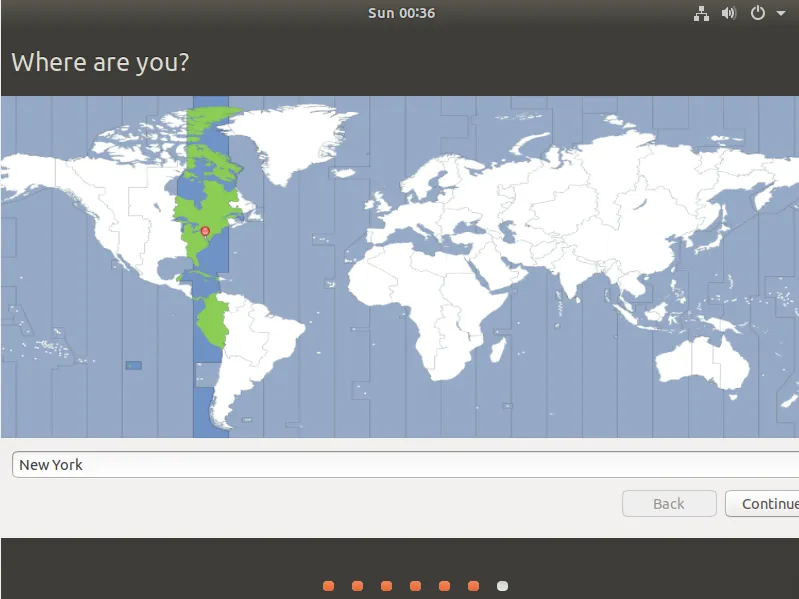
Select the country as shown in the image below, then click on (continue).
Step six:
The system then asks you who you are filling in the information, as shown in the image below.
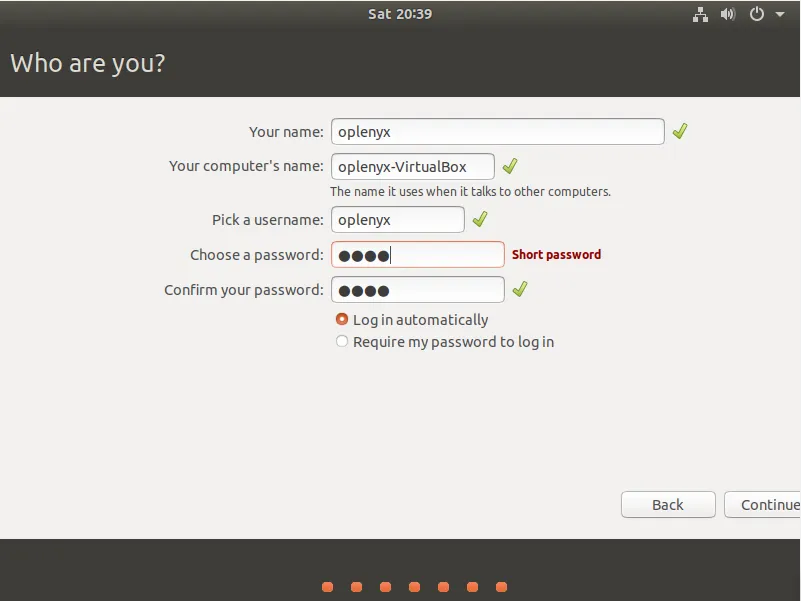
Note: If you want to log in to the system automatically when it is running without typing the password every time, choose the option (Log in automatically), as shown in the previous image.
Step seven:
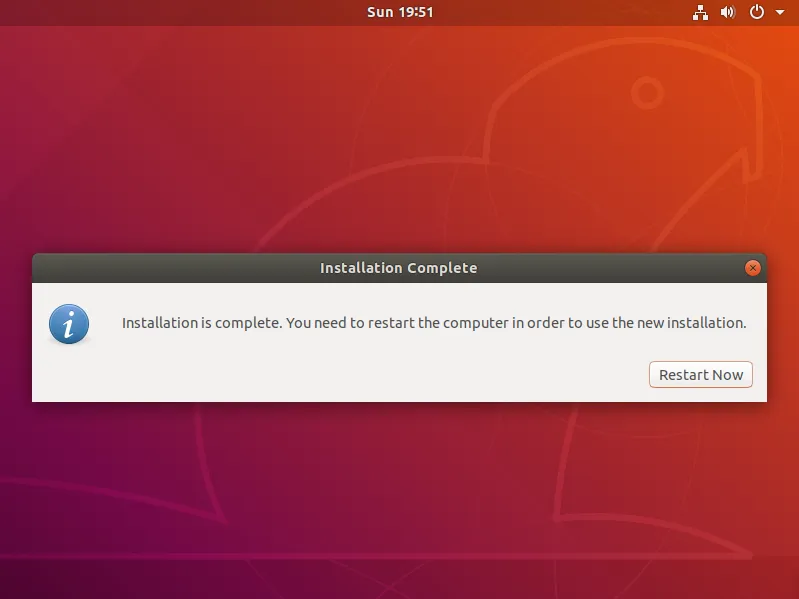
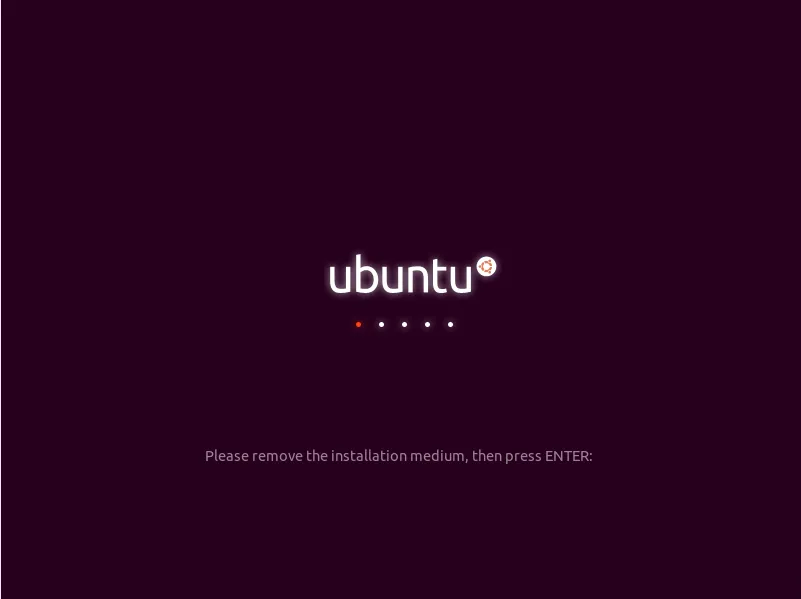
Once you click on (continue), the Ubuntu installation process begins. After the installation process is complete, you are asked to restart. After restarting, you are asked to click the (enter) button, as shown in the two pictures below.
Configure Ubuntu settings after installation:
First step:
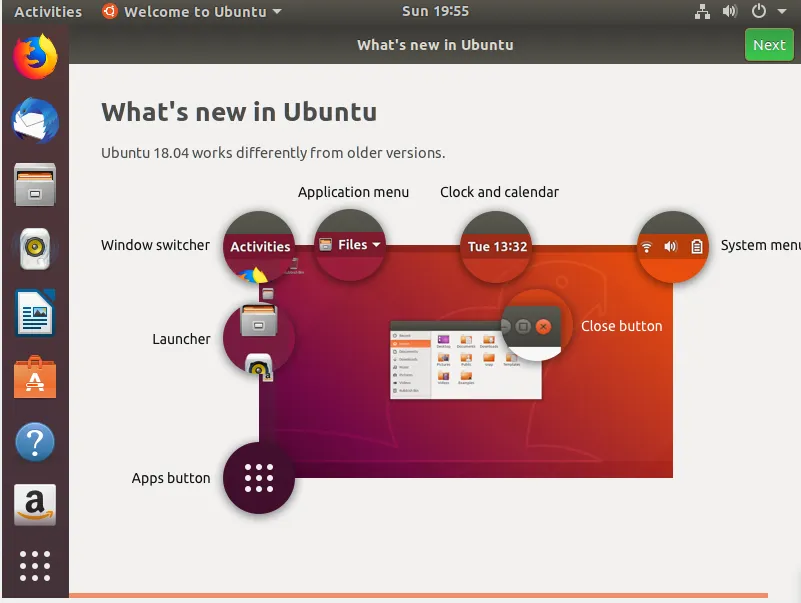
An educational image will appear. Click on (Next), which is at the top, as shown in the image below.
Step two:
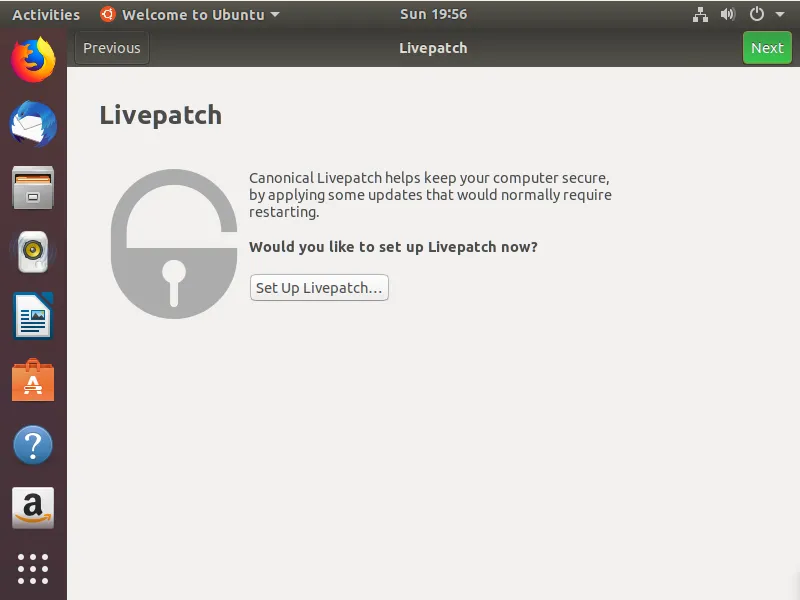
Then a service called (Livepatch) will appear. Click on (Next), as shown in the image below.
Step three:
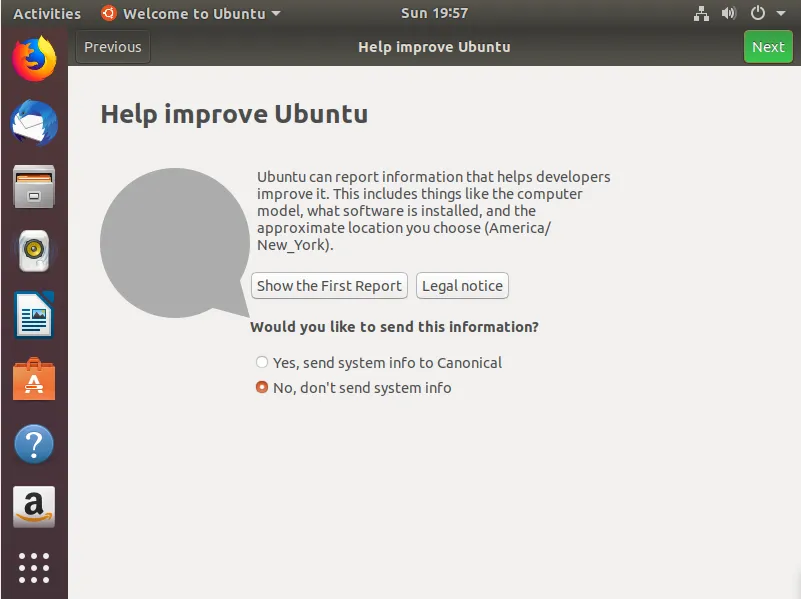
Next, another service called (help improve ubuntu) will appear, as shown in the image below. This service allows you to report errors and help improve Ubuntu. If you want to run it, choose the first option.
Step four:
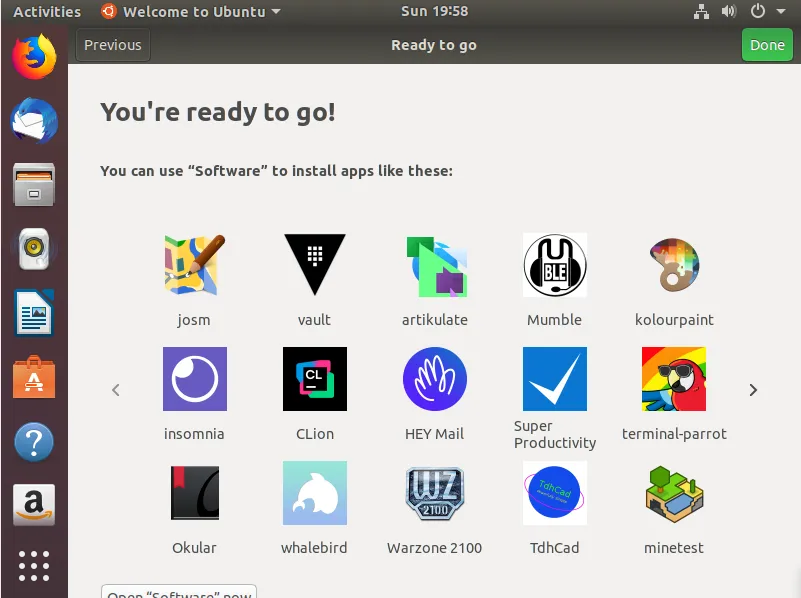
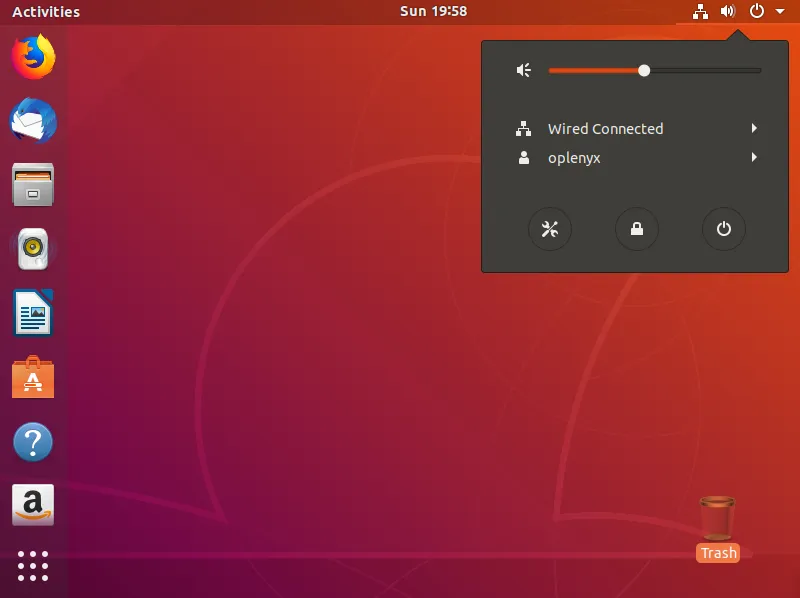
Then click on (Next), and after the applications appear, you can search for other programs or click on (Done). Once you click on done, you are finished, as shown in the images below.
Step five:
Ubuntu will ask you to upgrade the version while setting these parameters, as shown in the image below.
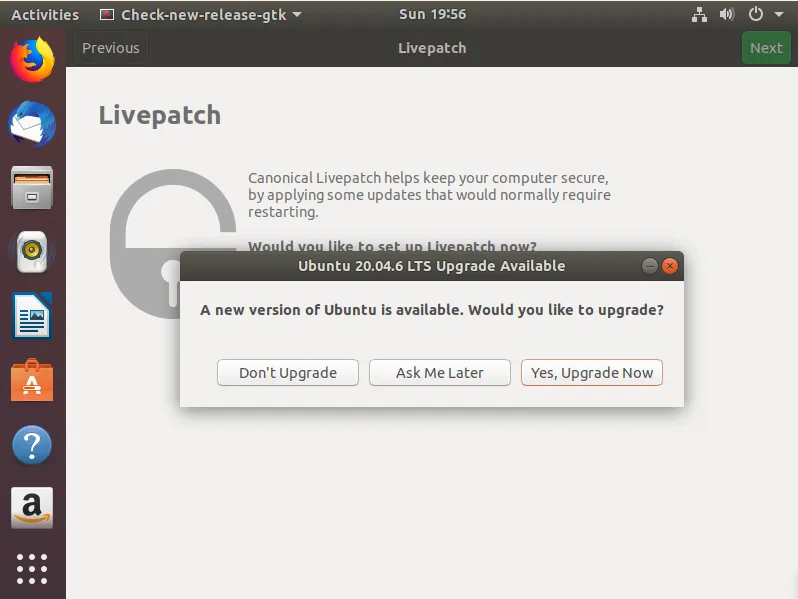
If you wish to update, click on (Yes, Upgrade Now). You can also update later by clicking on (Ask Me Later), or refuse to update by clicking on (Don’t Upgrade).
Step six:
Software updates will also appear. You can update the software by clicking on (Install Now), or update later by clicking on (Remind Me Later), as shown in the image below.
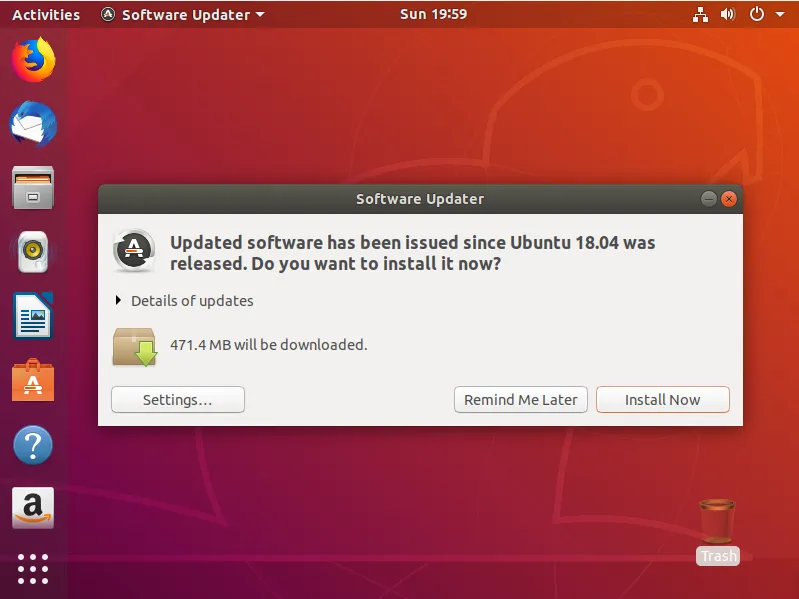
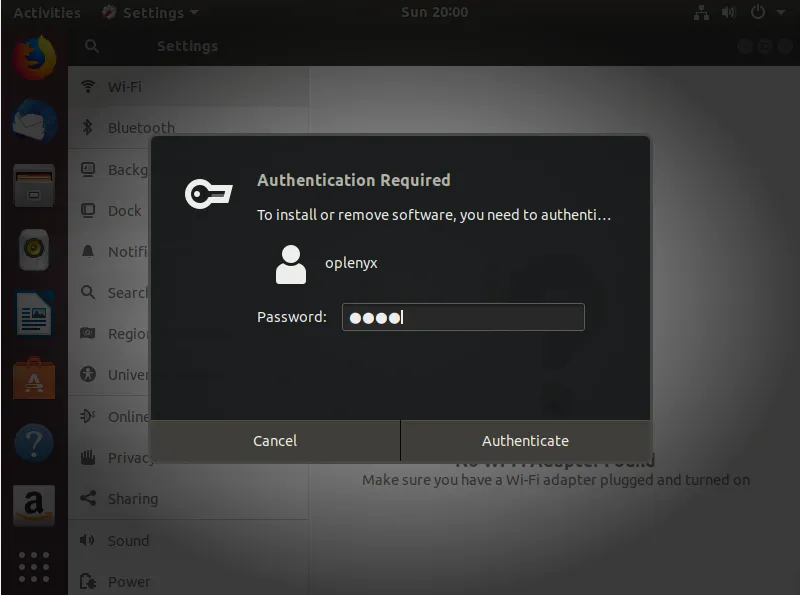
Note: If you choose to update now, the Ubuntu system will ask you to enter the password you entered during installation, as shown in the image below.
Here we have reached the end of this post, through which we learned how to install Ubuntu (as a primary system | as a virtual system).