In this post, we will learn how to download and install Visual Studio Code Ubuntu. A complete step-by-step explanation. But before we begin the explanation, we would like to welcome our dear visitors. Thank you.
How to search for Visual Studio Code on Ubuntu:
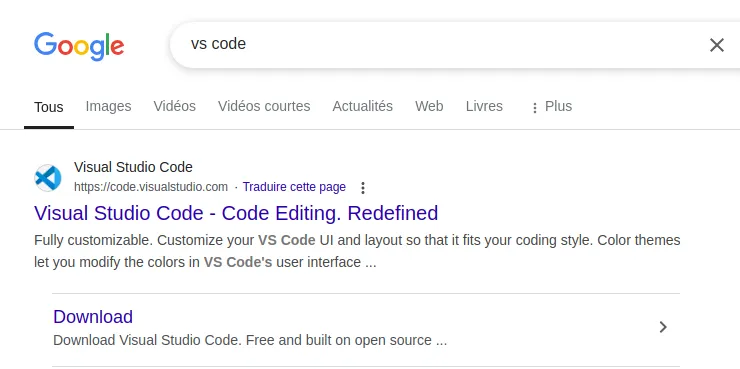
Go to one of the browsers, then type (Visual Studio Code) or (VS Code), then go to the official website as shown in the image below.
You can go directly to the official website from here.
How to download Visual Studio Code Ubuntu:
First step:
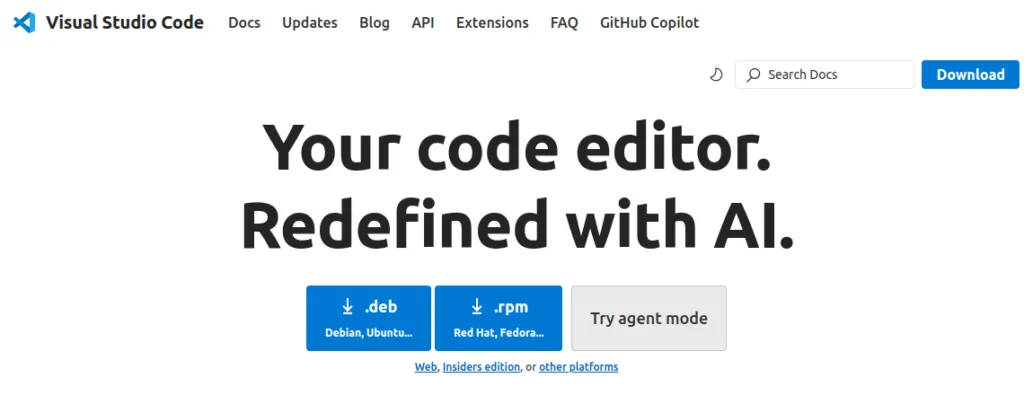
After entering the official website, you will notice two versions: (rpm.) and (deb.). Choose the .deb version as shown in the image below.
Step two:
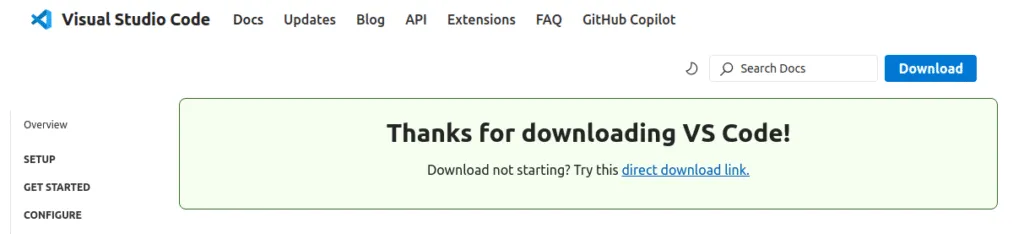
After clicking on the .deb version, the download process will begin. If the download process does not start, you can restart the download by clicking on (Download not starting? Try this direct download link) as shown in the image below.
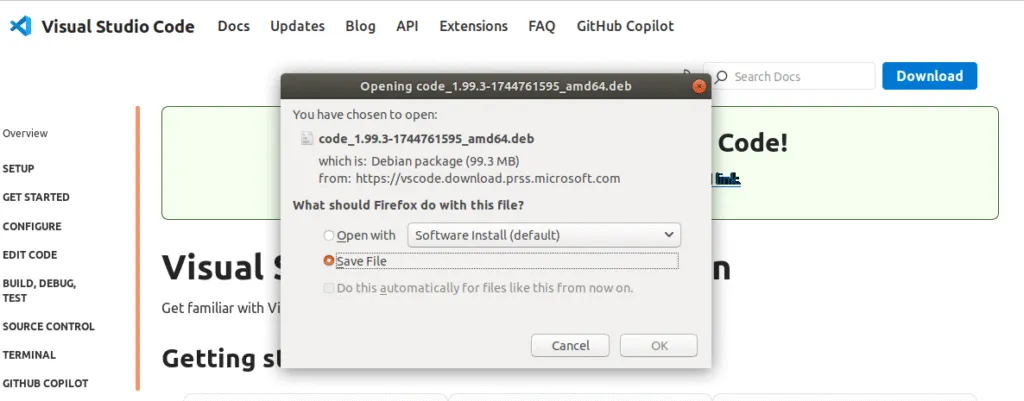
Note: If you are using a browser other than Google Chrome, a window will pop up asking you what you want the browser to do with the file. Choose Save file instead of Open with, as shown in the image below.
How to install Visual Studio Code on Ubuntu:
First step:
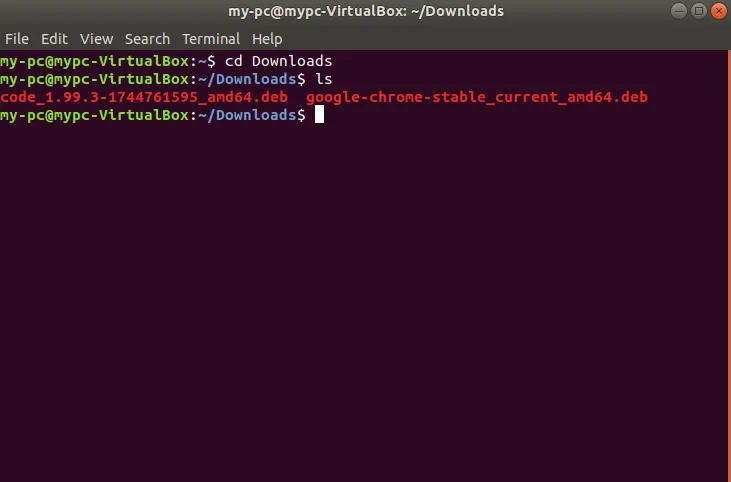
Go to my Ubuntu Terminal, then type cd followed by the name of the file where the program was downloaded, usually Downloads. After typing cd Downloads, type ls to display the contents of the Downloads file as shown in the image below.
Step two:
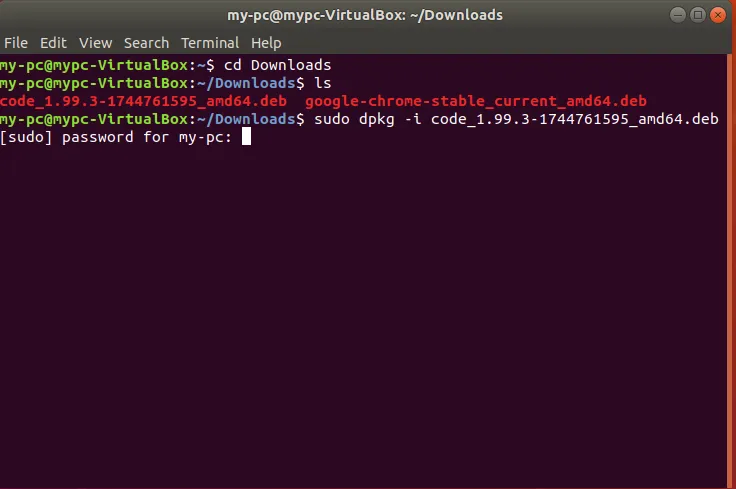
After displaying the contents of the Downloads file, type the command (sudo dpkg -i), then copy the full program name and paste it after the command, as shown in the image below.
Step three:
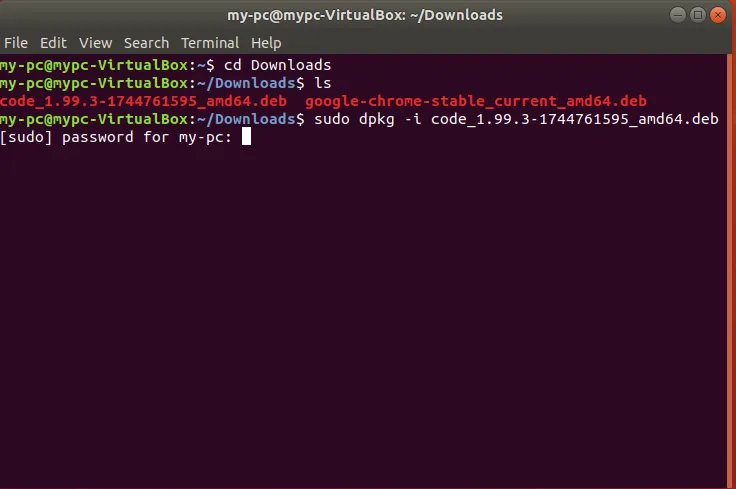
Write down the password you entered when installing the Ubuntu system as shown in the image below.
Warning: When typing the password, it does not appear on the Terminal.
Step four:
After entering the password, the installation process will begin. Wait until the installation process is complete, then go to the “show applications” option at the bottom, as shown in the image below.

Step five:
Find the program in the (show applications) section and run it as shown in the image below.
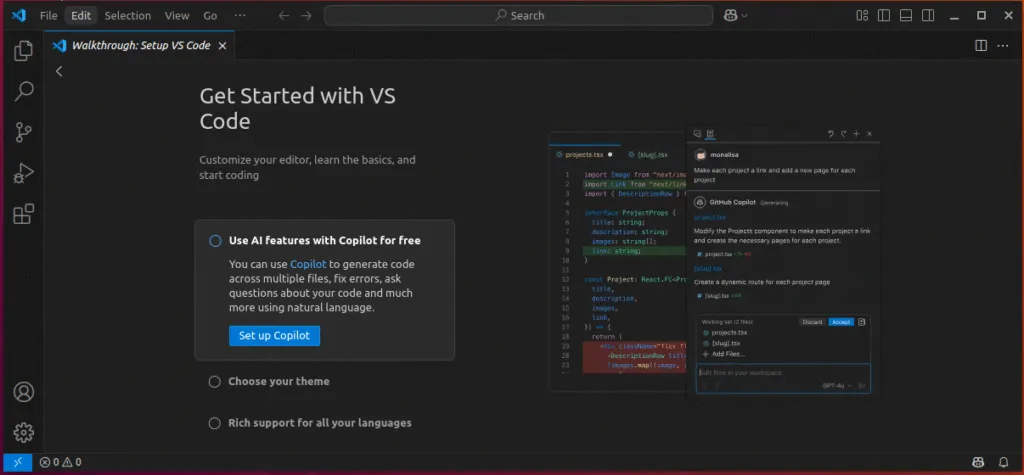
As you can see in the image above, the program was successfully installed and we ran it.
Here we have reached the end of this post, in which we learned how to download and install Visual Studio Code Ubuntu.